Getting started overview
GitHub ReadMe Stats provides dynamic, customizable SVG images that display GitHub statistics directly on a user's README file. This guide details the steps required to integrate these statistics into a GitHub profile. The process primarily involves constructing a specific URL that retrieves an SVG image, which can then be embedded into any Markdown file, such as a README.md. Customization options are controlled via query parameters appended to this URL.
The service is open-source and operates by fetching public GitHub data through the GitHub API and rendering it into a visually appealing card. Users do not need to create a separate account for GitHub ReadMe Stats itself, as it leverages existing GitHub profiles and public data. However, understanding how GitHub tokens function can be beneficial for advanced use cases or self-hosting, as they manage access to GitHub's API. For general usage, a personal access token is not strictly required, but it can help circumvent GitHub API rate limits if you encounter issues with the public instance.
This getting started guide focuses on the quickest path to displaying your first stats card, covering the basic URL structure and common parameters. It also addresses how to troubleshoot initial setup challenges and suggests next steps for further customization and integration.
Quick reference table
| Step | What to do | Where |
|---|---|---|
| 1. Prepare GitHub Profile | Ensure your GitHub profile is public and contains activity. | GitHub Profile Settings |
| 2. Construct Basic URL | Build the base URL: https://github-readme-stats.vercel.app/api?username=YOUR_USERNAME |
Web browser or text editor |
| 3. Embed in README | Add the image Markdown:  |
Your README.md file |
| 4. Commit and Push | Save changes to your README.md and push to GitHub. |
Git command line or GitHub Desktop |
| 5. Verify Display | Check your GitHub profile README for the rendered stats card. | Your GitHub profile page |
Create an account and get keys
Unlike many API services, GitHub ReadMe Stats does not require you to create a dedicated account or obtain specific API keys for its primary functionality. The public instance of GitHub ReadMe Stats, hosted on Vercel, operates by making requests to the GitHub API using its own internal mechanisms. This means that for displaying your stats, you only need an active GitHub account with public activity.
However, if you plan to self-host GitHub ReadMe Stats for reasons such as avoiding rate limits, gaining more control over the service, or deploying custom modifications, you will need to generate a GitHub Personal Access Token (PAT). A PAT acts as an alternative to using your password for authentication to GitHub when using the GitHub API or command line. When generating a PAT for self-hosting, it's generally recommended to grant it the minimal necessary scopes, such as public_repo, to access public repository information and user data. Ensure to keep your PAT secure and never expose it in public repositories or client-side code.
To generate a GitHub PAT:
- Navigate to your GitHub profile settings.
- Select Developer settings from the sidebar.
- Choose Personal access tokens > Tokens (classic).
- Click Generate new token > Generate new token (classic).
- Provide a descriptive note for the token's purpose.
- Select the necessary scopes (e.g.,
public_repofor public data access). - Click Generate token.
- Copy the generated token immediately, as it will not be shown again.
This token can then be used in your self-hosted instance's environment variables (e.g., TOKEN or GH_TOKEN) to authenticate requests to the GitHub API, thereby increasing the rate limit available for your self-hosted instance. For the default, publicly hosted GitHub ReadMe Stats service, this step is not necessary.
Your first request
Getting your first GitHub ReadMe Stats card displayed involves constructing a simple URL and embedding it into your GitHub README.md file. The core component is the base URL of the service, followed by query parameters that specify your GitHub username and any desired customizations.
The base URL for the main stats card is https://github-readme-stats.vercel.app/api. To display your statistics, you must append the username parameter.
Step 1: Construct the basic URL
Replace YOUR_USERNAME with your actual GitHub username:
https://github-readme-stats.vercel.app/api?username=YOUR_USERNAME
For example, if your GitHub username is octocat, the URL would be:
https://github-readme-stats.vercel.app/api?username=octocat
Step 2: Embed the URL in your README.md
Open your GitHub repository's README.md file (or create one if it doesn't exist). Add the following Markdown, replacing YOUR_CONSTRUCTED_URL with the URL you created in Step 1:

Using the octocat example:

Step 3: Commit and push changes
Save the changes to your README.md file, commit them to your repository, and push the changes to GitHub. Once pushed, navigate to your GitHub profile page or the repository where you updated the README. The stats card should now be visible.
Example with additional parameters:
You can add more parameters to customize the card's appearance. For instance, to include all commits, hide specific stats, and use a different theme, you might use:
https://github-readme-stats.vercel.app/api?username=YOUR_USERNAME&show_icons=true&theme=nord&include_all_commits=true&hide=prs
This URL would display icons, apply the 'nord' theme, include all past commits, and hide the 'Pull Requests' statistic from the card. The GitHub ReadMe Stats documentation provides a comprehensive list of available parameters for customization.
Common next steps
After successfully displaying your initial GitHub ReadMe Stats card, several common next steps can enhance your profile and provide more detailed insights:
-
Customize the Stats Card: Explore the extensive customization options available through URL parameters. You can change themes, hide specific statistics, show icons, include all commits, and more. Refer to the GitHub ReadMe Stats themes documentation for a list of available themes and parameters. Experiment with different combinations to match your profile's aesthetic.
-
Add Top Languages Card: Integrate a separate card to display your most used programming languages. This is done using a different API endpoint:
This card also supports customization parameters like themes and hiding specific languages. Consult the Top Languages card documentation for details.
-
Include Streak Stats: For users interested in showcasing their daily coding streaks, consider integrating the streak stats card:
Note that this uses a separate, but related, project for streak tracking. The GitHub Streak Stats documentation provides setup instructions and customization options.
-
Self-Host the Service: If you encounter rate limits with the public instance, require greater control, or wish to deploy custom modifications, consider self-hosting GitHub ReadMe Stats on a platform like Vercel. This involves forking the repository and deploying it to your own Vercel account, often requiring a GitHub Personal Access Token for increased API rate limits.
-
Explore Alternatives: While GitHub ReadMe Stats is comprehensive, alternative tools exist for specific display needs. Examples include Shields.io for badges and GitHub Profile Trophy for gamified achievements. Evaluating these options can help you select the best fit for your profile.
-
Monitor Performance: Periodically check your GitHub profile to ensure the stats cards are loading correctly. If you observe issues, refer to the troubleshooting section or the official documentation for updates.
Troubleshooting the first call
When integrating GitHub ReadMe Stats, you might encounter issues that prevent the stats card from displaying correctly. Here are common problems and their solutions:
-
Image Not Loading / Broken Image Icon:
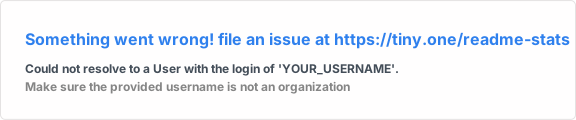
- Incorrect Username: Double-check that the
usernameparameter in your URL exactly matches your GitHub username, including case. - Typo in URL: Review the entire URL for any typos, incorrect parameters, or missing slashes. Ensure the base URL
https://github-readme-stats.vercel.app/apiis correct. - GitHub API Rate Limit: If many users are accessing the public instance simultaneously, or if you've made many requests in a short period, you might hit GitHub's API rate limits. This can cause the image to fail loading. This is more common with the public instance. Consider waiting a few minutes or self-hosting with a Personal Access Token to increase your individual rate limit.
- Network Issues: Ensure you have a stable internet connection.
- Incorrect Username: Double-check that the
-
Stats Card Shows '0' for All Metrics:
- Private GitHub Profile: GitHub ReadMe Stats can only access public data. If your profile or repositories are private, the service cannot fetch the necessary information. Ensure your profile and relevant repositories are set to public. For managing profile visibility, refer to GitHub's profile visibility settings.
- New GitHub Account: If your GitHub account is very new or has minimal public activity, there might not be enough data for the stats card to display meaningful metrics.
-
Customization Parameters Not Working:
- Incorrect Parameter Name: Verify that parameter names (e.g.,
theme,show_icons) are spelled correctly and match the official documentation's list of options. - Invalid Parameter Value: Ensure the values you provide for parameters are valid (e.g., a recognized theme name like
nord, notdarkblue). - URL Encoding: While less common for simple parameters, complex values or special characters might require URL encoding. Typically, browsers handle this automatically, but it's worth checking if issues persist with unusual values.
- Incorrect Parameter Name: Verify that parameter names (e.g.,
-
README.md Not Updating on GitHub:
- Unsaved Changes: Ensure you have saved your
README.mdfile locally. - Uncommitted Changes: Make sure you have committed the changes to your local Git repository.
- Unpushed Changes: Ensure you have pushed your local commits to the remote GitHub repository. GitHub's interface will only reflect changes once they are pushed.
- Unsaved Changes: Ensure you have saved your
-
Using a Custom Domain / Self-Hosted Instance:
- If you are self-hosting, ensure your instance is correctly deployed and accessible.
- Verify that any environment variables, especially for GitHub Personal Access Tokens, are correctly configured on your hosting platform (e.g., Vercel, Netlify). The self-hosting guide provides specific instructions.